
You are able to receive any updates to Spindle Purchase Invoice Recognition, without the need to upgrade using the Spindle Document Management installers.
You can explicitly set the updates to take place automatically or do them manually. The automatic updates can be set to take place outside of the set working hours, so that there are no disruptions to your services whilst your Users may be using Spindle Purchase Invoice Recognition during the day.
How to setup Automatic Updates & Set Working Hours
- On the server, open the Spindle Document Management Server Administration tools
- Click on Recognition...
- Click on System Configuration...
- On the System Settings tab
- Go to the Automatically update Spindle Document Recognition option
- Select Yes. Note: By default the option will be set to Yes
- Go to the Set Working Hours option
- Set the most appropriate working hours for your Company. Note: By default the times will be set to 08:00 - 18:00
- Click OK
- You will be prompted to restart the Spindle Purchase Invoice Recognition services. Note: The Draycir Cloud Synchronisation Agent must be restarted for the changes to take effect
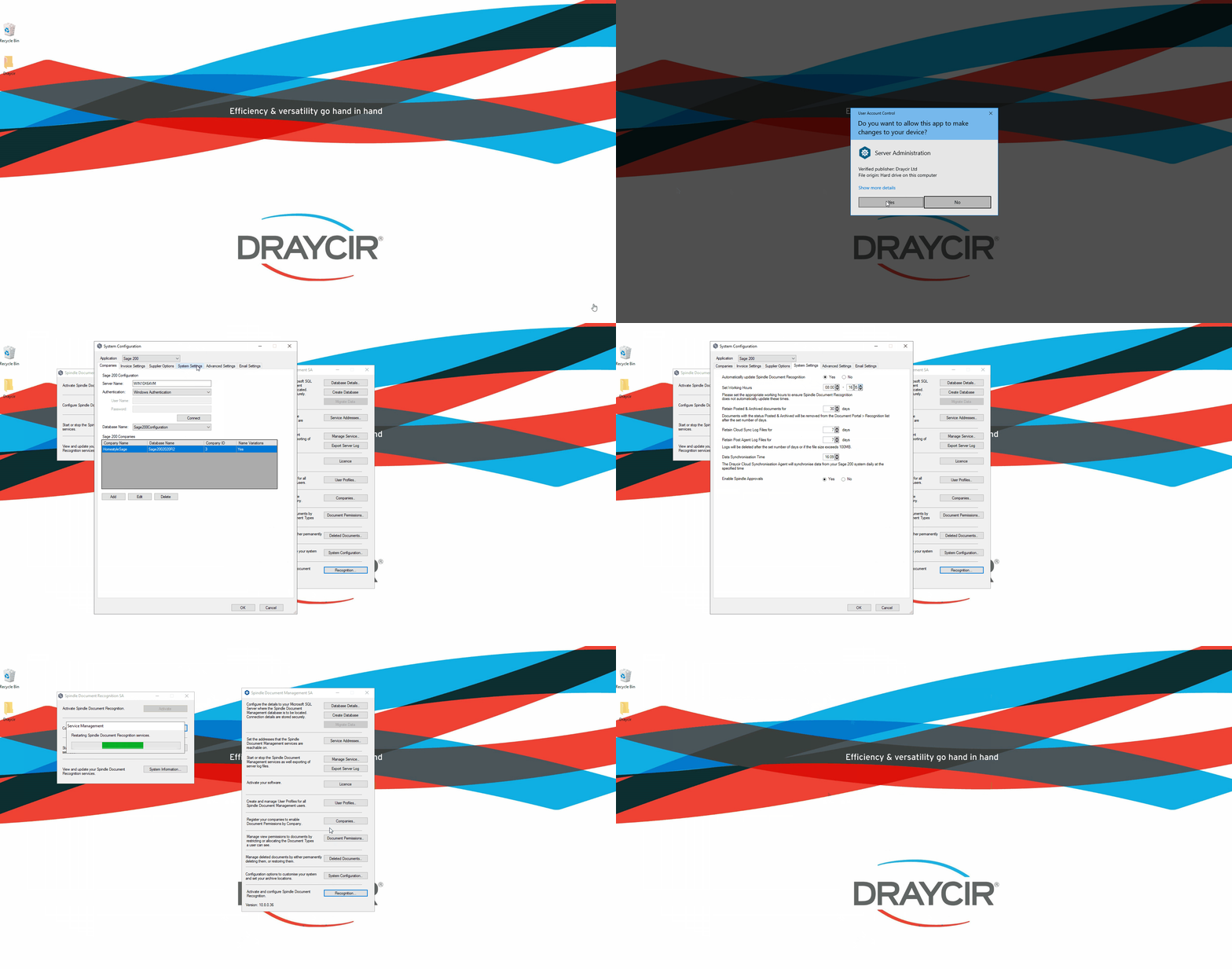 How to setup Automatic updates & Set Working Hours
When will the automatic updates take place?
The server will check for updates throughout the day, however the upgrades will only take place after your "Set Working Hours".
How to manually update Spindle Purchase Invoice Recognition
- On the server, open the Spindle Document Management Server Administration tools
- Click on Recognition...
- Click on System Information...
- Click on Check for updates
- You will be prompted with a new window, where the system will check if there are any new updates.
- If a new version is available click Update, else click OK
- Click OK after the updates have completed
 How to manually update SPIR
Why can I not see the Automatically update Spindle Document Recognition & Set Working Hours options?
To benefit from this feature you must be on Spindle Document Management version 10.8 or later.