
When your document shows a status of Verification Required, it means that there are fields that you either need to confirm or populate (if the system was not able to identify the data). You will need to open the Web Verify portal in a web browser to confirm or update these fields.
Each field displayed in Web Verify has a distinct rule or set of rules that are applied to allow data to be recognised with a degree of confidence without the requirement for zonal template mappings on every supplier invoice. The recognition engine uses a combination of Optical Character Recognition (OCR) and master data matching to find and validate invoice data.
Master Data
Some of the field recognition rules have a requirement for master data to be supplied from the ERP system. This allows validation checks to be done between data that is found on the invoice, against data in the ERP.
Opening a document in Web Verify
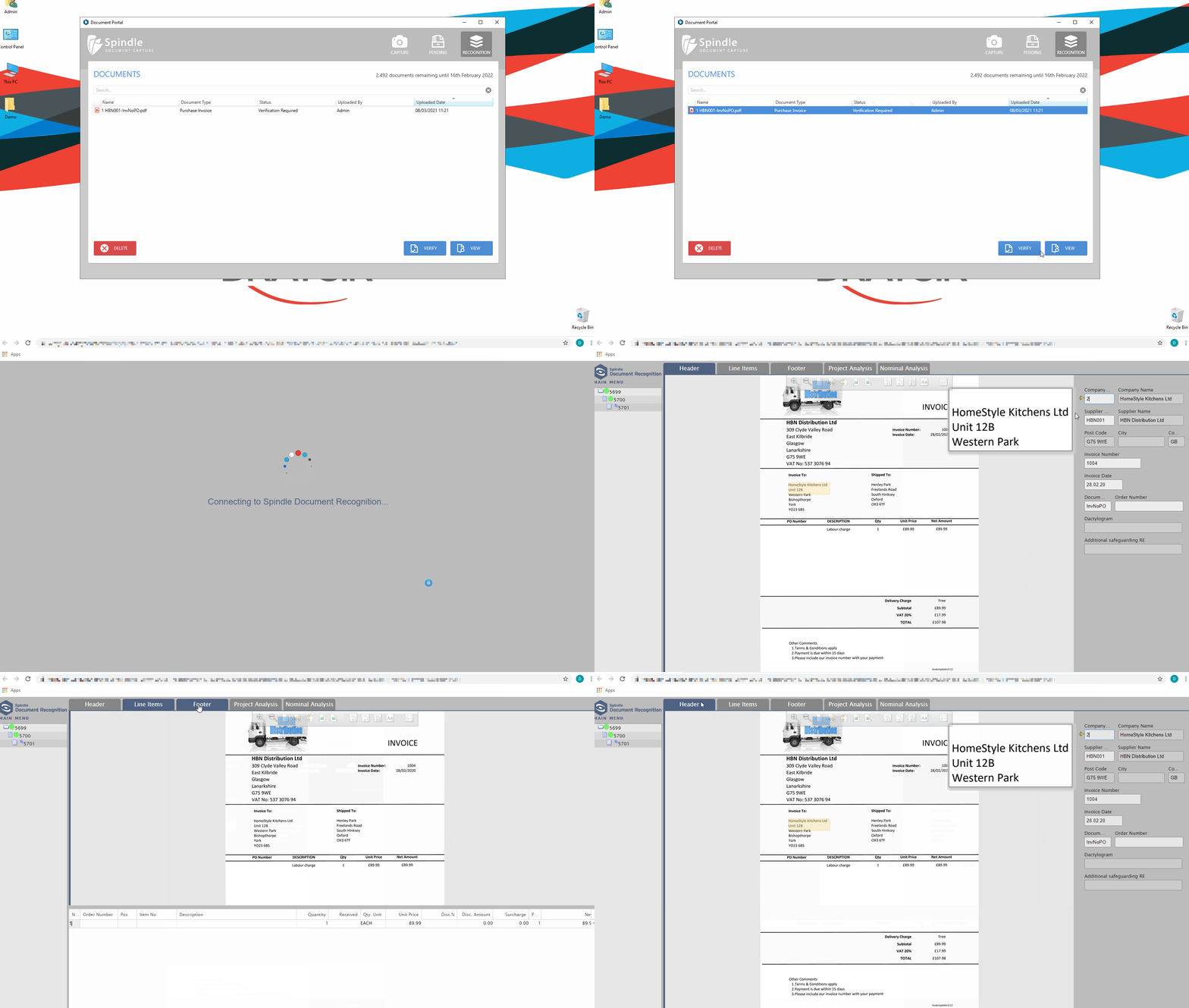
Click on a document in the Document Portal and click on the VERIFY button (bottom right of window).
Your document will open in the Web Verify portal (in your default web browser).
 How to verify a Purchase Invoice
Navigating around the tabs
There are 5 tabs across the Web Verify portal:
- Headers
- Line Items
- Footer
- Project Analysis
- Nominal Analysis
To move between the tabs you can either click on the individual tabs or use the + key to move to the next erroneous field. Once you reach the end of the document, you will see a pop-up dialog asking you to confirm you want to post the Purchase Invoice - click Yes to confirm.
Green - Field requires confirmation (click into the field and press Enter or '+' key to confirm it)
Red - A mandatory field is either blank or the field validation rule has failed (needs manual correction)
Opening a document using the Document Verification List
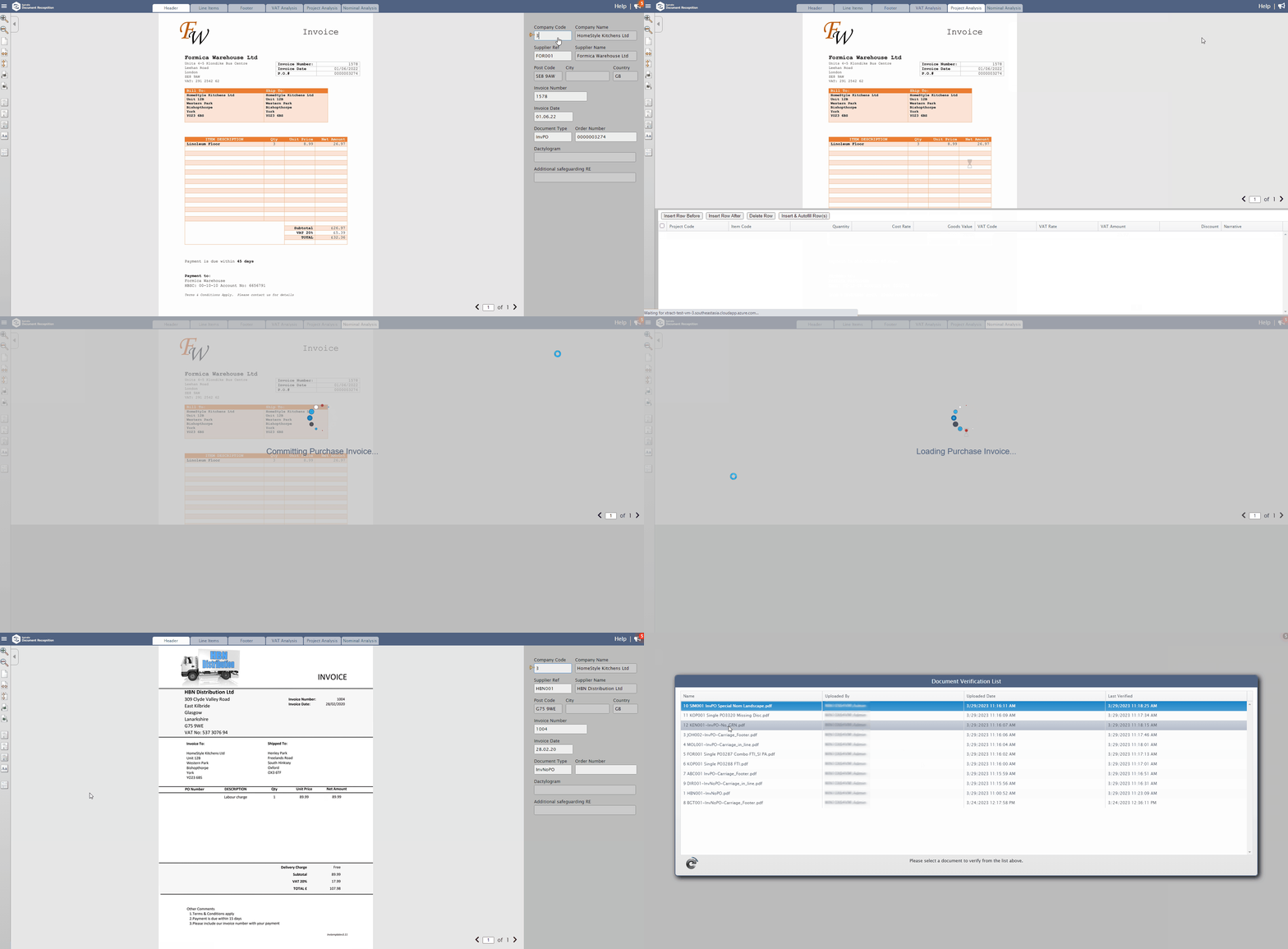
After completing your document in the Web Verify portal, you will be presented with a Document Verification List.
The Document Verification List displays all documents that have a Verification Required status, making it quicker for you to verify your "next" document without needing to return to the Document Portal.
Click on a document from the Document Verification List to verify it.
The document you selected will open in the Web Verify portal.
 Open a document using the Document Verification List