
The Project Analysis tab in Web Verify will allow you to View/Add/Update or Delete Project Analysis information prior to posting the Purchase Invoice or Credit Note into Sage 200.
Where the Document Type is 'InvPO’ (Invoice with Purchase Order), if Project Analysis data was populated against the Purchase Order line item in Sage 200, then the Project Analysis table in Web Verify will be automatically populated with this data. Each associated Project Analysis line will be represented by a separate row in the table.
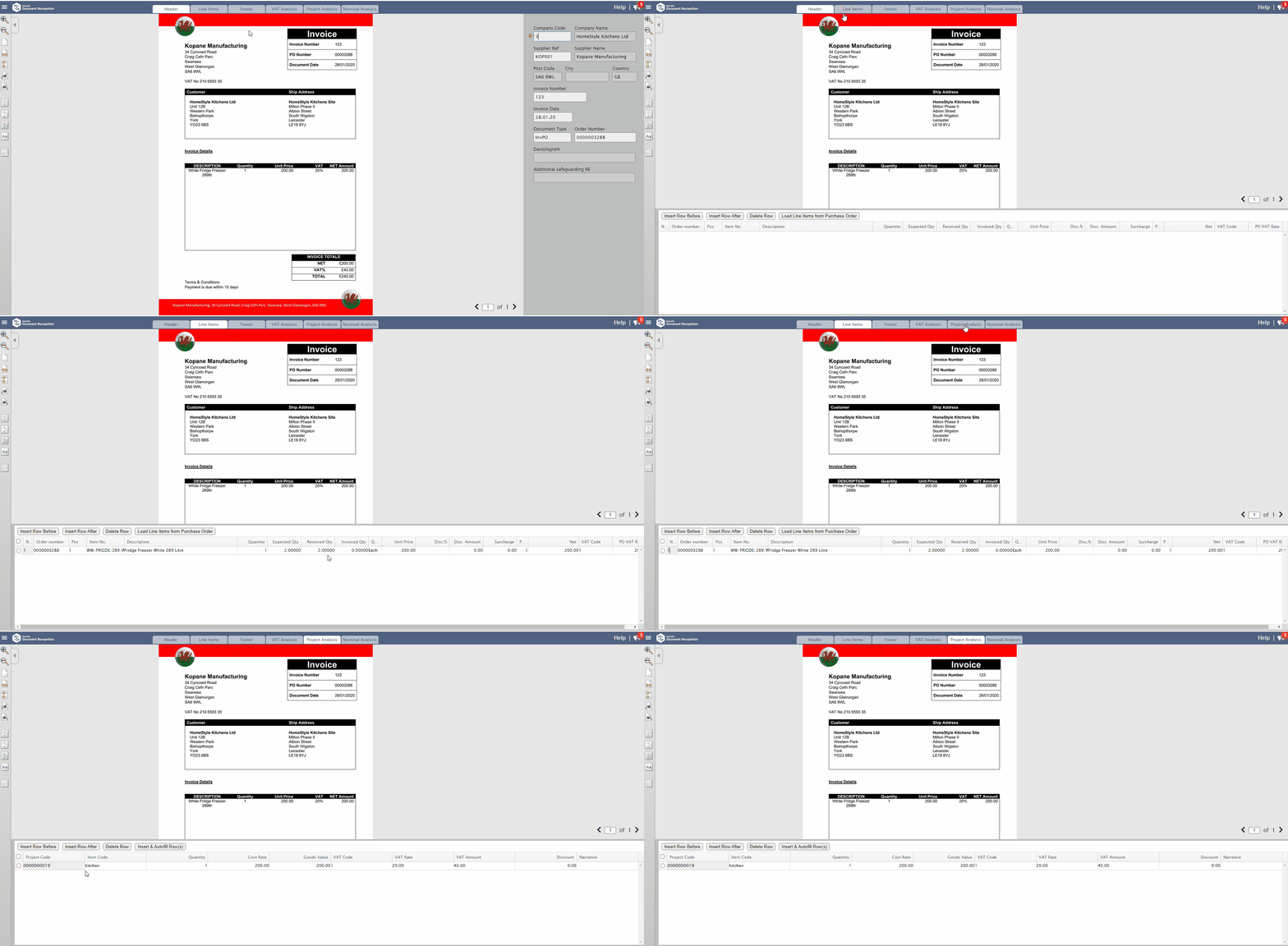 Auto populated Project Analysis data from Purchase Order
Where the Document Type is 'InvNoPO' (Invoice without Purchase Order) OR 'CredNoPR' (Credit Note without Purchase Return), the Project Analysis table will appear empty, however you will be able to manually enter Project Analysis line items.
Add Project Analysis data manually
- Click into the Project Analysis tab
- On this page, you will see the following buttons above the table:
- Insert Row Before - Adds a new blank row. If a Project Analysis line already exists, then the blank row will be added BEFORE this Project Analysis line.
- Insert Row After - Adds a new blank row. If a Project Analysis line already exists, then the blank row will be added AFTER this Project Analysis line.
- Insert & Autofill Row(s) - Adds a new row and auto populates information such as Quantity (defaults to '1'), Cost Rate, Goods Value, VAT Code, VAT Rate & VAT Amount taken from the VAT Analysis tab. The Project Code & Item Code, will be left blank, see the Add/Update the Project Analysis Code & Item Code section on how to update this information.
- Select one of the above options and complete the required information on the new row you have inserted.
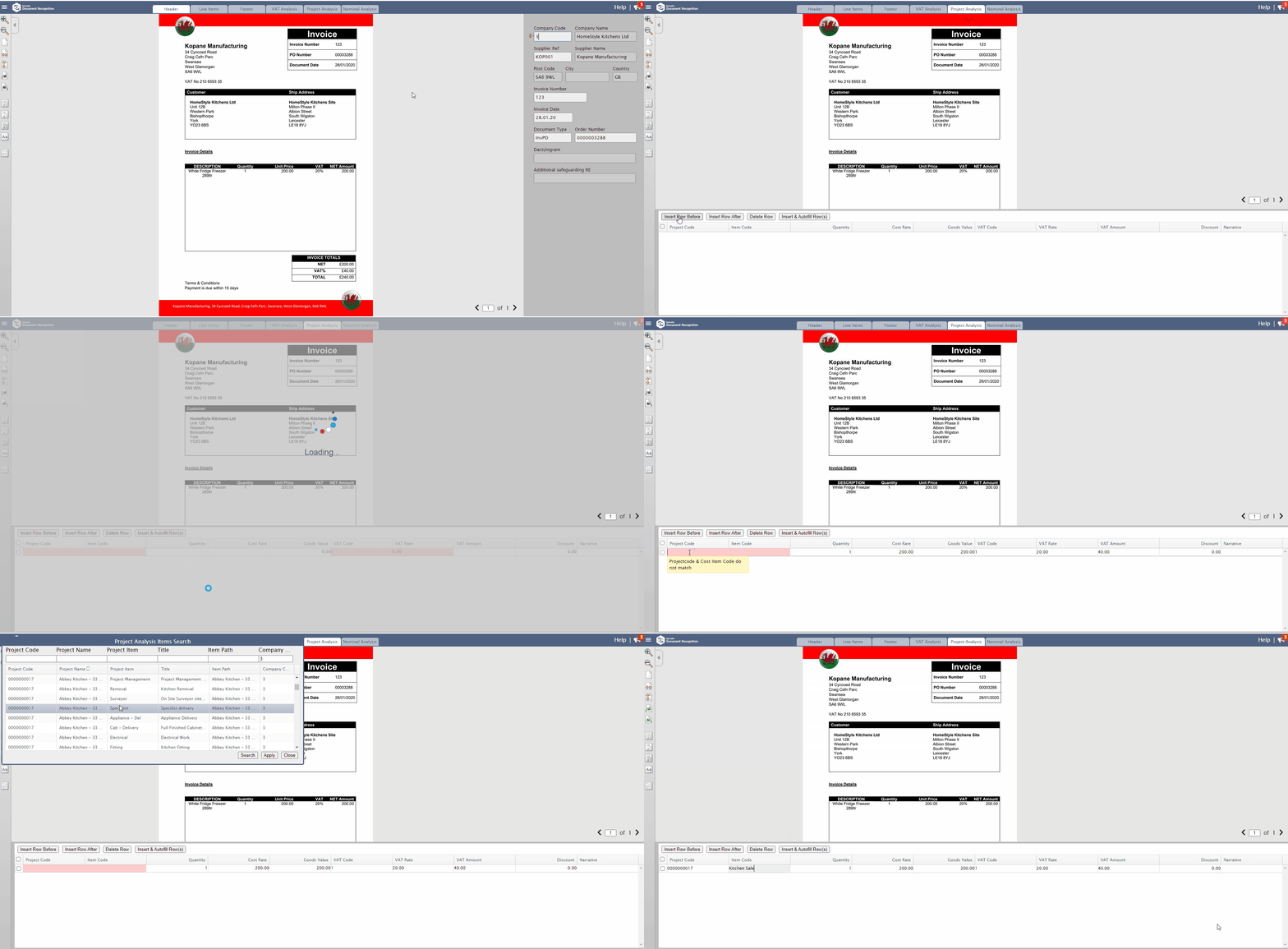 Add Project Analysis data manually
Add/Update the Project Code & Item Code
- Click into the Project Code field
- Press the F4 key on your keyboard to search for valid Project Codes and/or Item Codes from your accounting system (master data)
- In the search bar, remove the filter on the Project Code (if applicable) and click Search
- Select the Project Code & Item Code that you would like to update on the row
Alternatively, if you know the Project Code & Item Code, you can enter the data manually.
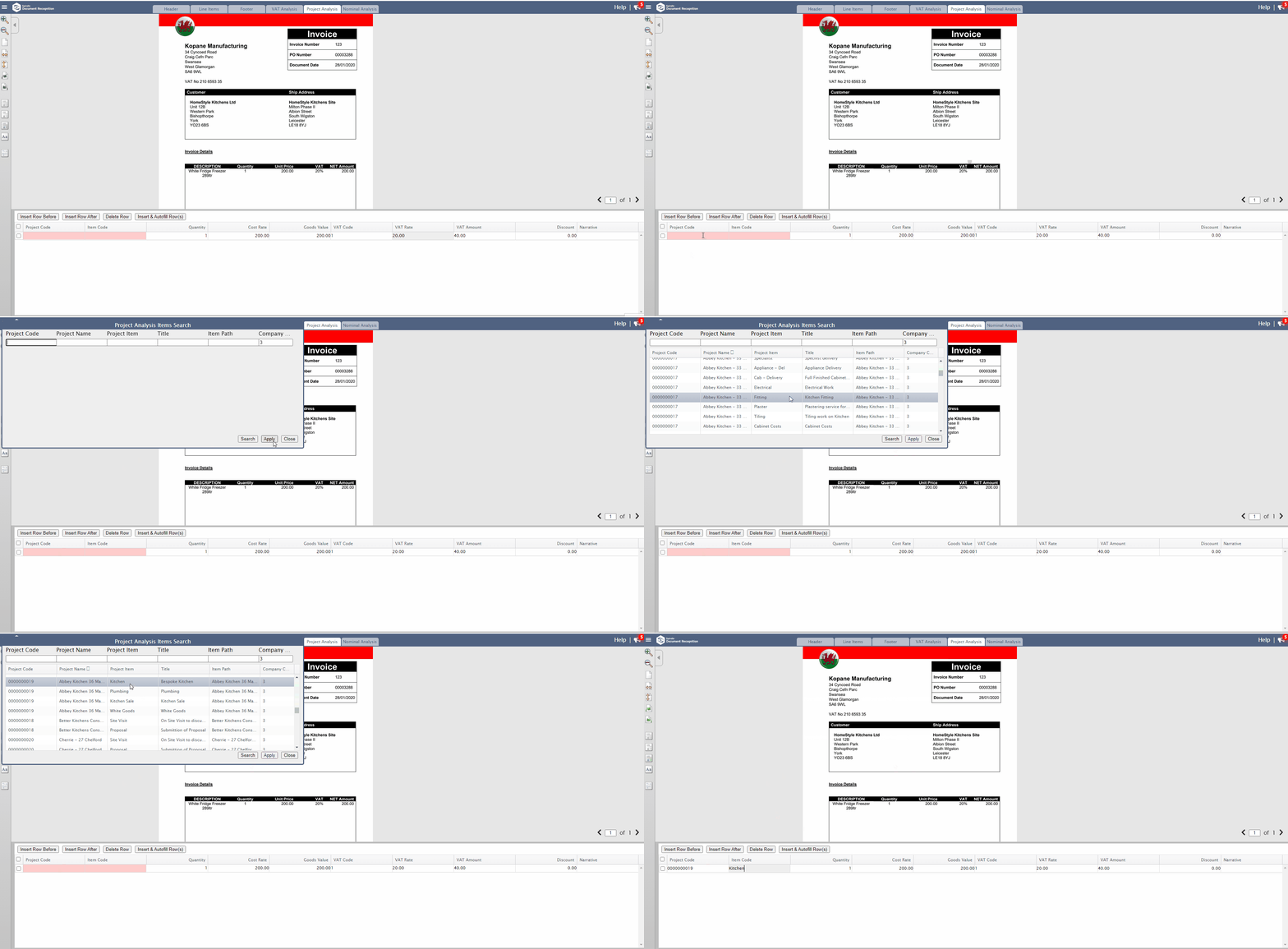 Add/Update the Project Code & Item Code
Delete Project Analysis Line
- Click into the Project Analysis tab
- Click the checkbox against the Project Analysis row(s) that you would like to delete
- Click the Delete Row button
- The Project Analysis row is deleted
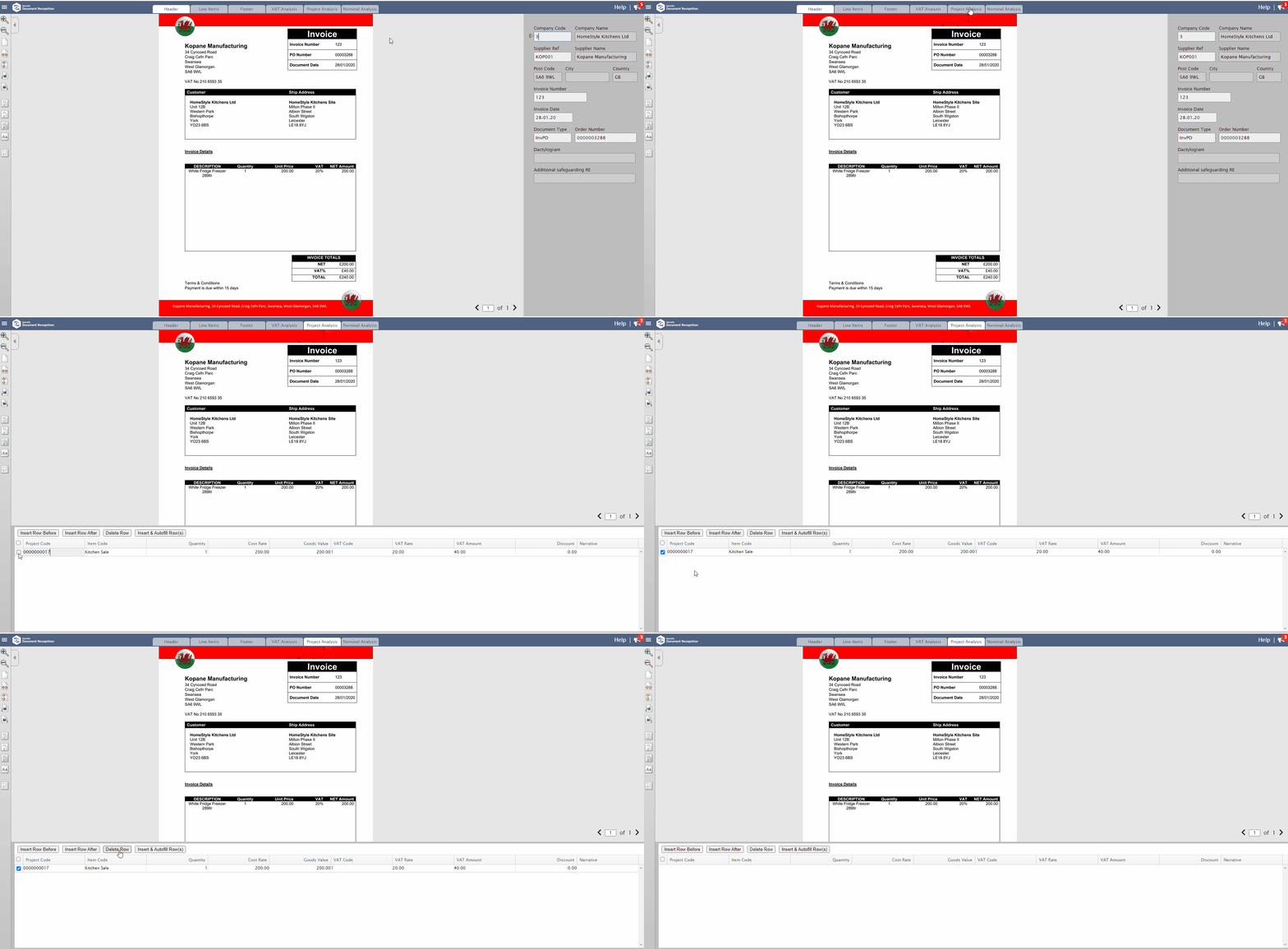 Delete Project Analysis row