
The VAT Analysis tab in Web Verify will show you a VAT breakdown by VAT Code, allowing you to make amendments prior to posting the Purchase Invoice or Credit Note into Sage 200.
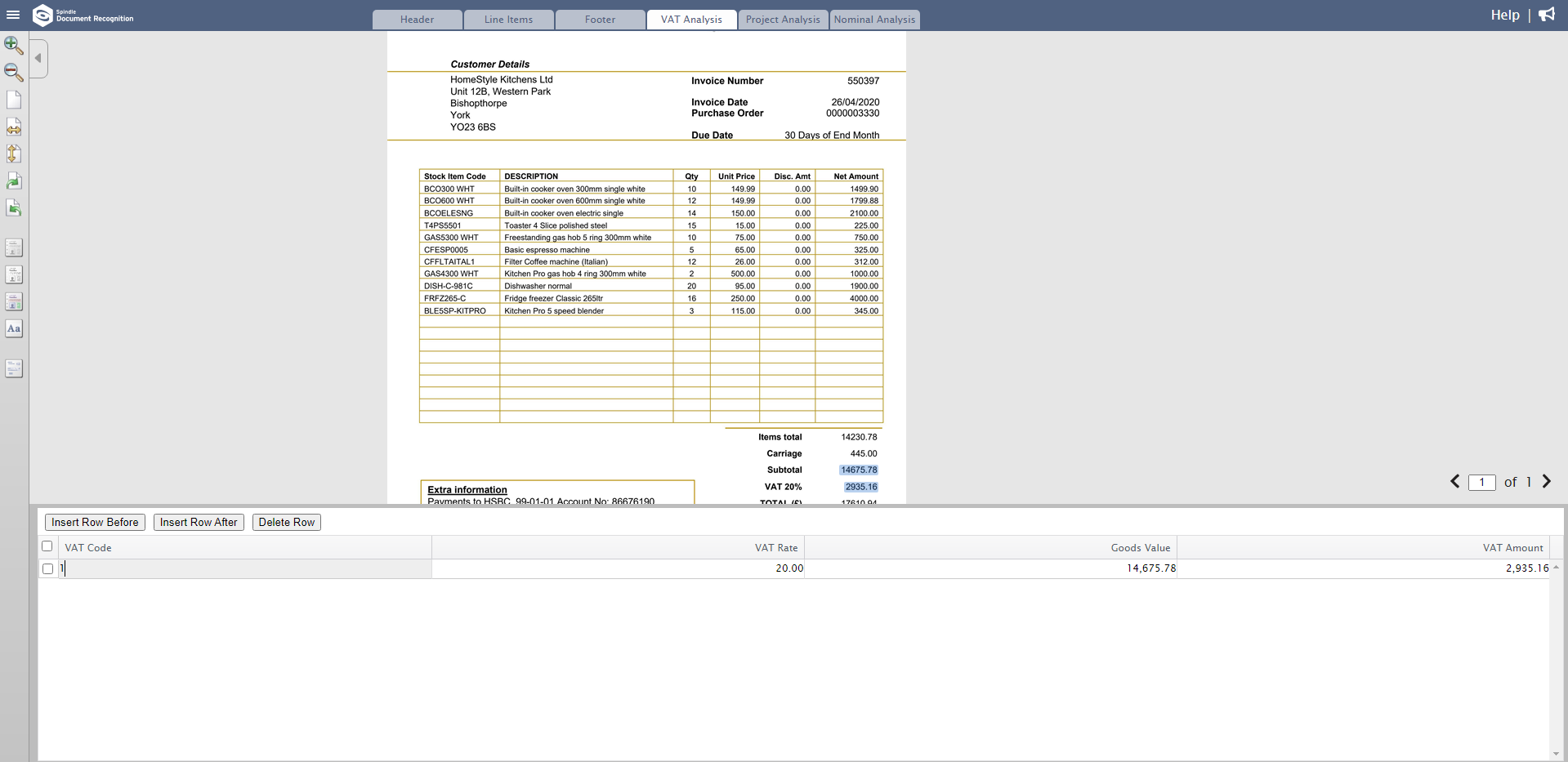 VAT Analysis tab in Web Verify
Where the Document Type is 'InvPO’ (Invoice with Purchase Order), the VAT Analysis table will be populated from data shown on the Line Items tab. Each unique VAT Code will be represented by a separate row in the table.
Where the Document Type is 'InvNoPO' (Invoice without Purchase Order) OR 'CredNoPR' (Credit Note without Purchase Return), the VAT Analysis table will be based on the VAT shown on the invoice Footer tab. Each unique VAT Rate will be represented by a separate row in the table. If there is a default VAT Code set against the Supplier Account in Sage 200, and this matches the VAT Rate on the invoice, then this VAT Code will be automatically populated.
Updating the VAT Code
- Click into the VAT Code field
- Press the F4 key on your keyboard to search for valid VAT Codes in your accounting system (master data)
- In the search bar, remove the filter on the VAT Code and click Search
- Select the VAT Code that you would like to update on the row
Alternatively, if you know the VAT Code, you can enter it manually.
- The VAT Analysis tab is only applicable if you are working with Sage 200.
- The VAT Analysis tab must not be disabled in the Spindle Document Management Server Administration tool.
- You must be on Spindle Document Management version 9.3 or later.