
If your organisation trades with Suppliers that invoice you for stock items in units that are different to those on your Purchase Order, then as long as these conversion ratios are set up in Sage 200, Spindle Purchase Invoice Recognition will be able to match your Purchase Invoice line items back to the equivalent Purchase Order line items, even if the quantities differ.
For example, a Purchase Order has a quantity of 1 and a unit of Box of 20, but the Purchase Invoice has the quantity as 20 and a unit of Each. In this example, as long as the stock item has been set up with a conversion ratio in Sage 200 to indicate that a Box of 20 = 20 Each, Spindle Purchase Invoice Recognition will be able to use this ratio to automatically match the lines.
Pre-requisites for supporting different Units of Measure
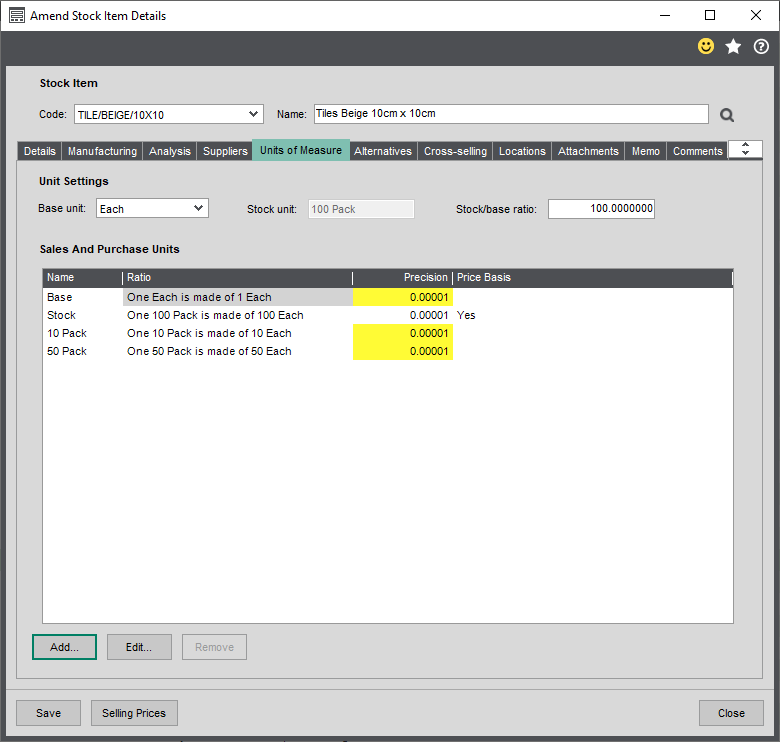
In order for Spindle Purchase Invoice Recognition to match the Purchase Invoice line items back to the equivalent Purchase Order line items, the different units must be setup against each applicable Stock item in Sage 200. See the example Stock item below where it it been broken down into several units e.g. Base, Stock, 10 Pack & 50 Pack:
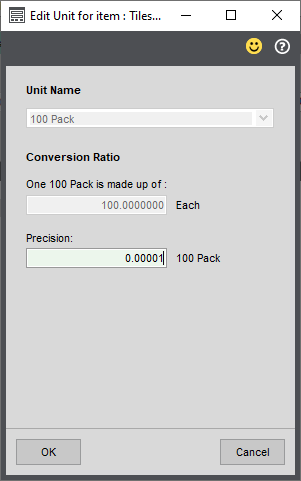
 Sage 200 - Stock Item DetailsFor each Stock item unit, you must set the quantity Conversion Ratio back to Base (assuming the Purchase Order will use the Base unit). If you take the Stock unit example from above, you will see that for this unit the conversion ratio has been set to 100:
 Sage 200 - Stock Item Unit
It's this quantity conversion ratio set against each unit that Spindle Purchase Invoice Recognition uses to help assist the line item matching process.
How to enable Units of Measure line item matching
- On the server, open the Spindle Document Management Server Administration tools
- Click on Recognition...
- Click on System Configuration...
- On the Invoice Settings tab
- Go to the Enable recognition of Invoice line items with different Units of Measure option
- Click Yes
- Click OK on the Invoice Settings tab
- You will be prompted to restart the Spindle Purchase Invoice Recognition services. Note: The Draycir Cloud Synchronisation Agent must be restarted for the changes to take effect
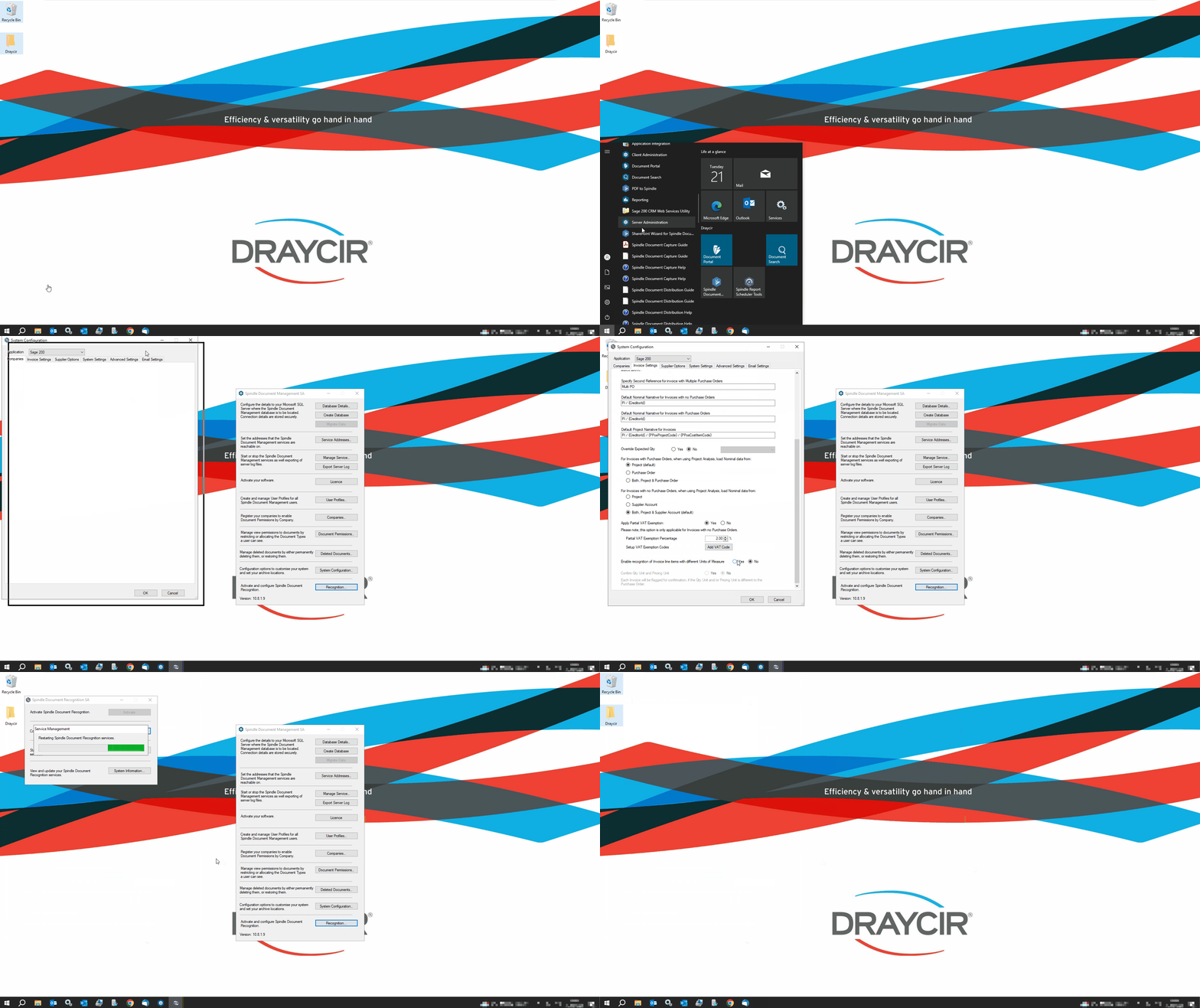 How to enable different Units of Measure line item recognition
Disable clearing for the Qty Unit and Pricing Unit fields
If the Qty Unit and/or Pricing Unit identified on the Purchase Invoice differs from the Purchase Order, then these two fields will be flagged in green for clearing. This has been done to highlight any differences to you. This will not prevent you from posting the invoice into Sage 200.
If you do not want these fields to be flagged in green, you can disable clearing on these fields by following these instructions:
- On the server, open the Spindle Document Management Server Administration tools
- Click on Recognition...
- Click on System Configuration...
- On the Invoice Settings tab
- Go to the Confirm Qty Unit & Pricing Unit option
- Note: This will only be able available to select if the Enable recognition of Invoice line items with different Units of Measure option has been set to Yes
- Click Yes
- Click OK on the Invoice Settings tab
- You will be prompted to restart the Spindle Purchase Invoice Recognition services. Note: The Draycir Cloud Synchronisation Agent must be restarted for the changes to take effect
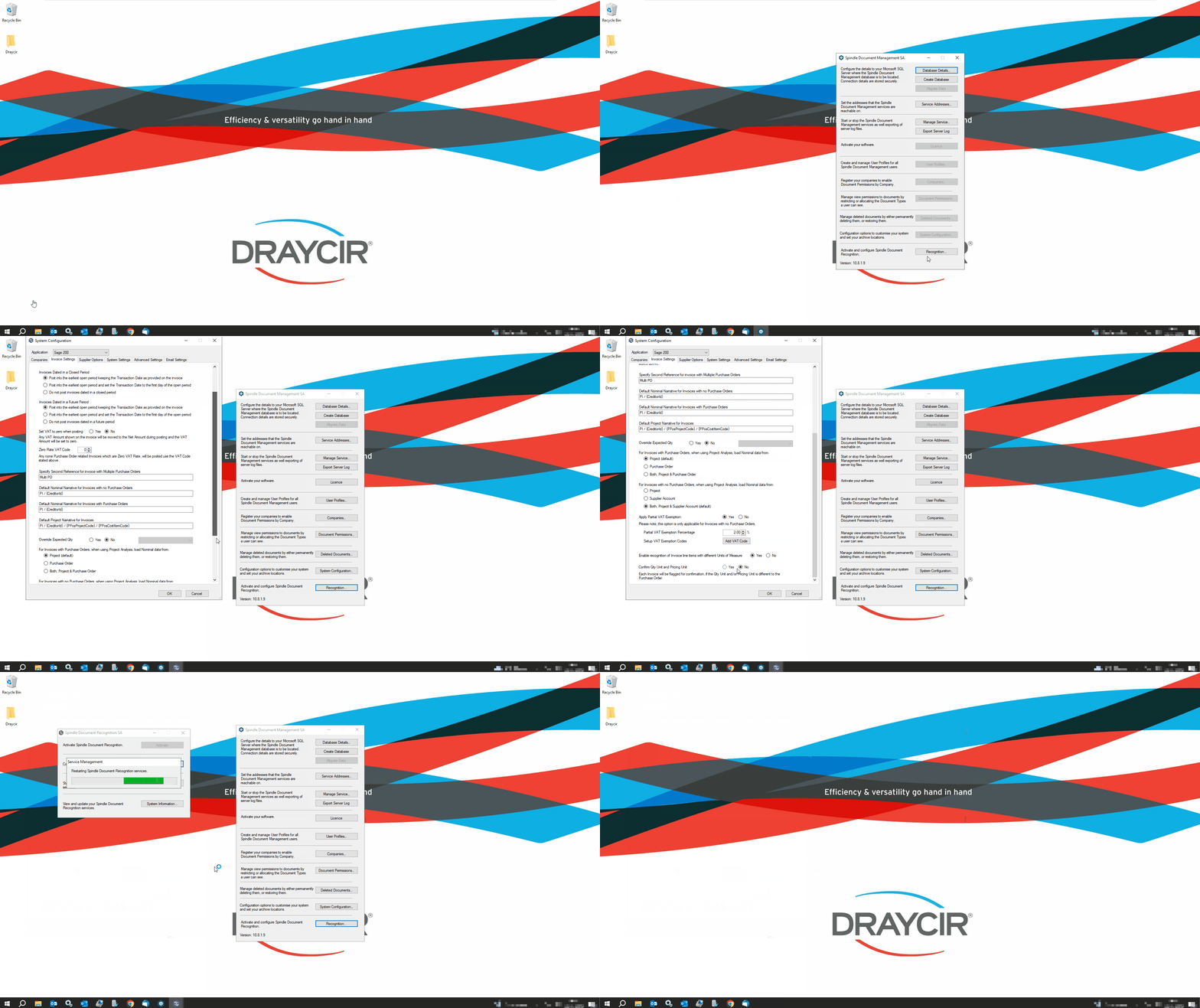 Disable clearing for the Qty Unit and Pricing Unit fields