
Once you have been invited to Spindle Approvals by an Administrator, you can register and then sign in using the following methods:
Sign in with a Username and Password
.PNG) Spindle Approvals Sign in using Username and Password
Spindle Approvals Sign in using Username and Password Sign in with your Microsoft Account
Spindle Approvals allows you to seamlessly sign in with Azure Active Directory (Azure AD), allowing you to login using your existing Microsoft account credentials. This eliminates the need to remember multiple login credentials, making the login process faster and more convenient.
If you have been invited to Spindle Approvals using an email address associated with a Microsoft account, you can simply sign in using the "Sign in with Microsoft" button.
If you register your Spindle Approvals account in this way, all future logins for this user must be via the "Sign in with Microsoft" button.
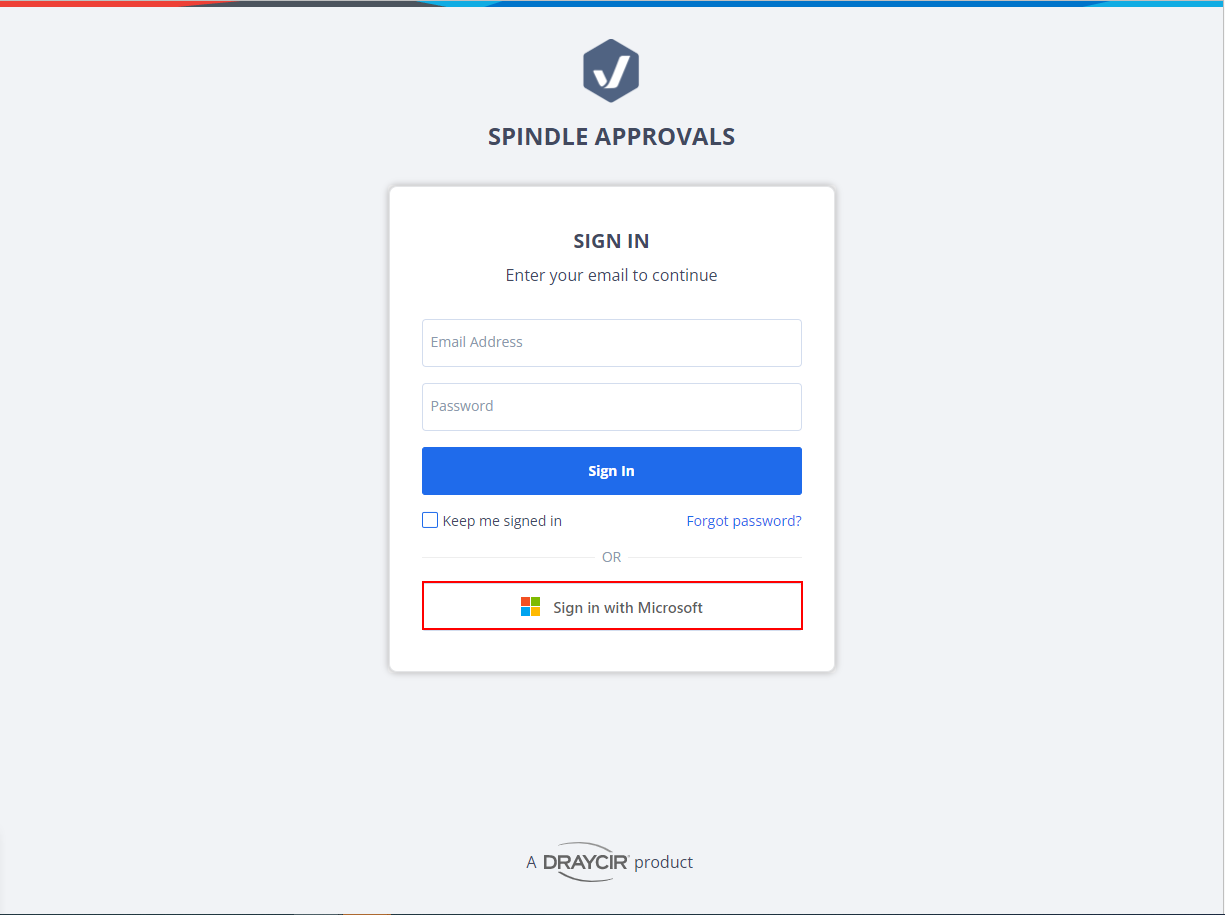 Spindle Approvals Sign in using Microsoft Account
Enter your Microsoft credentials in the pop-up window and proceed to sign in. The first time you attempt to sign in using your Microsoft credentials, you will be asked to click a button to approve Spindle Approvals as an application that can use your Microsoft account.
Migrating to a Microsoft Account
If you initially used a standard username and password and then changed to signing in with your Microsoft Account, when attempting to sign in again with a standard username and password, you will see a message advising to 'Sign in with Microsoft' instead,
If you want to go back to using a standard Username and Password, please contact your Administrator as they will need to contact Draycir Support. We will then review your account.
What if I need to reset my password?
Using a standard Username and Password
On the sign in page click "Forgot password?" and follow the instructions on screen. You'll need access to the email address that you used to sign up with.
Registered using a Microsoft account
You will need to reset your Microsoft password which is managed by you or your organisation. Please contact your IT Administrator for further assistance on this.