
To begin using Spindle Approvals with Spindle Purchase Invoice Recognition, you must first setup your Workflow rules.
Workflow rules are a set of actions that are executed when certain specified conditions are met regarding a Purchase Invoice.
Conditions are specified on Purchase Invoice data e.g. supplier or amount of the invoice. Alternatively, you can specify the condition to identify discrepancies between the Purchase Invoice and corresponding Purchase Order including at line item level.
Actions can be configured to include sending the Purchase Invoice to a single Approver, multiple Approvers or auto Approving or Rejecting the Purchase Invoice based on the conditions that are met.
The Workflow rules enable you to automatically send a Purchase Invoice to the appropriate approvers who are alerted by email when an approval request is triggered.
In summary, Workflow rules are broken into two parts:
- Conditions: This is the condition that must be matched in order to trigger the appropriate action.
- Action: The activity that should take place when the condition has been met.
Example of an approval rule:
- Condition: If the Purchase Invoice is from Supplier "ABC Ltd"
- Action: Then send an approval request to Joe Bloggs.
The Purchase Invoice will only now be posted into the accounting system if Joe Bloggs approves it.
How to create a Workflow rule
- Open Spindle Approvals in a web browser (https://www.approvals.draycir.com/)
- Click on Workflows on the top menu banner
- Click on Purchase Invoices
- Click on the Add Rule button on the top-right of the screen
- This will insert a new rule cased
- Click on the new rule card to expand the options
- Enter a 'rule name' (Mandatory)
- Enter a 'description' for the rule (Optional)
- This information will be seen by the Approver when they review the approval request
- Click on +Add Condition
- Click on dropdown list under the Name column. The list will contain all Purchase Invoice related fields and calculated fields that are available for selection
- Select the condition you want to base your rule on e.g. Supplier Name
- Select the appropriate option from the Operator e.g. Equal To
- Enter the data to be used for the field condition in the Value column e.g. ABC Ltd
- Select the required Action for the rule. The options are:
- Auto Approve
- Auto Reject
- Add a single Approver
- Add multiple Approvers
- All Approvers must approve
- Any one Approver must approve
- Click on the SAVE button on the top-right of the screen
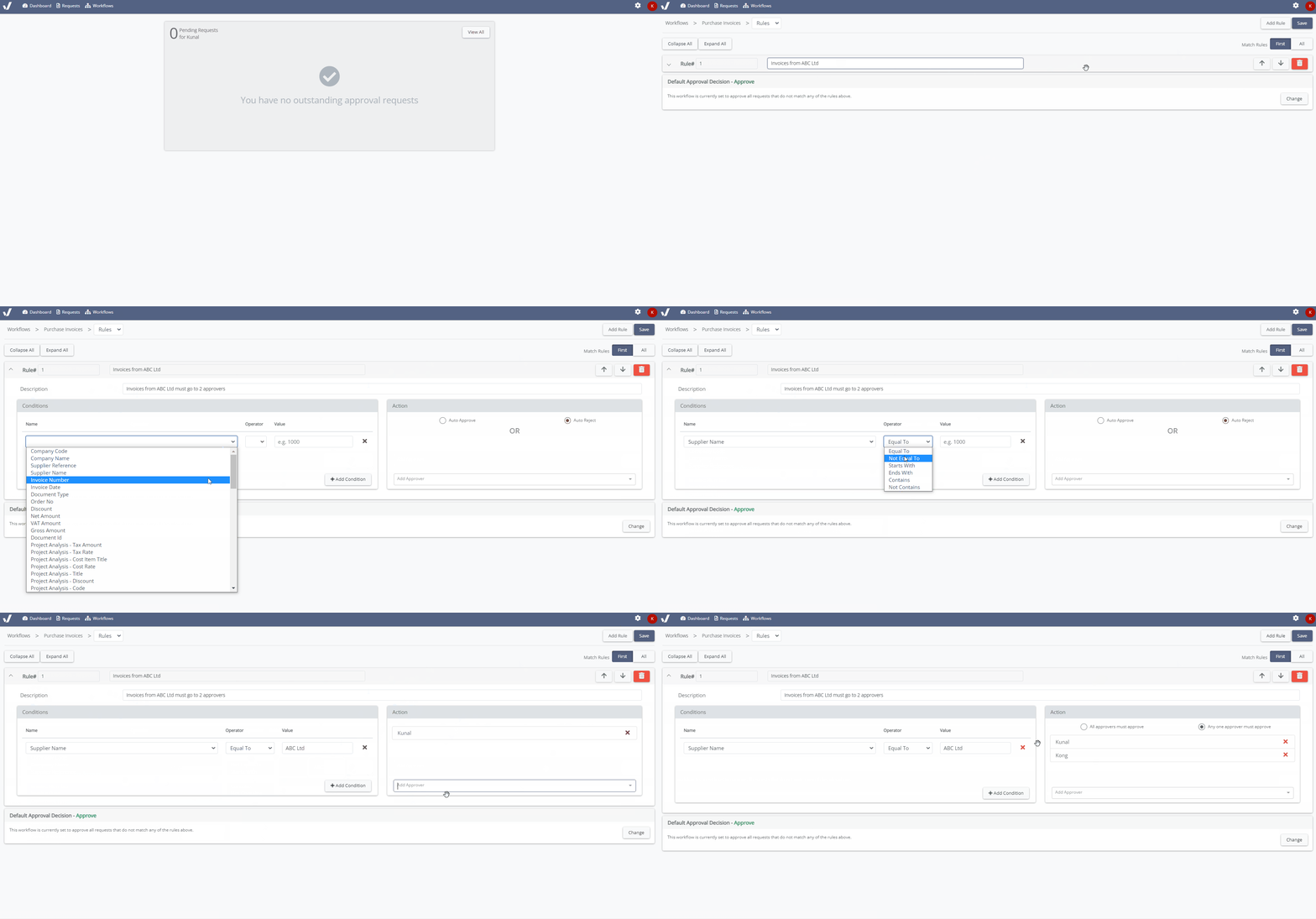 How to setup a Workflow rule