
The Nominal Analysis tab in Web Verify will allow you to View/Add/Update or Delete Nominal Analysis data prior to posting the Purchase Invoice into Sage 200.
How Nominal Analysis data is populated
Where the Document Type is 'InvPO’ (Invoice with Purchase Order), the Nominal Analysis data is populated from the Purchase Order line item in Sage 200. Each line item identified and matched on the Purchase Invoice will have a corresponding Nominal Analysis line.
Where the Document Type is 'InvNoPO’ (Invoice without Purchase Order), the Nominal Analysis data will be populated from the default on the Supplier Account in Sage 200. If the Supplier Account does not have a default Nominal, then the table will appear blank in Web Verify.
When using Project Analysis, depending on the Document Type, the logic for loading Nominal Analysis data is slightly different.
Where the Document Type is 'InvPO’ (Invoice with Purchase Order), the Nominal Analysis data is populated from the Project Analysis line item associated to Purchase Order line item in Sage 200.
Where the Document Type is 'InvNoPO’ (Invoice without Purchase Order), if a Project Analysis line is manually added in Web Verify, then the Nominal associated to the Project will be populated in the Nominal Analysis table. In addition, the default Nominal from the Supplier Account in Sage 200 will also be populated. If the Supplier Account does not have a default Nominal, then the table will only display the Nominal from the Project Analysis line.
If the above defaults are not suitable, then you are able to configure the Nominal Analysis data that you would like to have auto-populated when using Project Analysis.
How to change the default Nominal Analysis data when using Project Analysis
For Invoices with Purchase Orders
- On the server, open the Spindle Document Management Server Administration tools
- Click on Recognition...
- Click on System Configuration...
- On the Invoice Settings tab
- Go to the For Invoices with Purchase Orders, when using Project Analysis, load Nominal data from option
- You can select one of the following 3 options:
- Project (default) - Populates the Nominal from the Associated Project Analysis line item
- Purchase Order - Populates the Nominal from the Associated Purchase Order line item
- Both, Project & Purchase Order - Populates both Nominals, from the Project & Purchase Order
- Click OK
- You will be prompted to restart the Spindle Purchase Invoice Recognition services. Note: The Draycir Cloud Synchronisation Agent must be restarted for the changes to take effect.
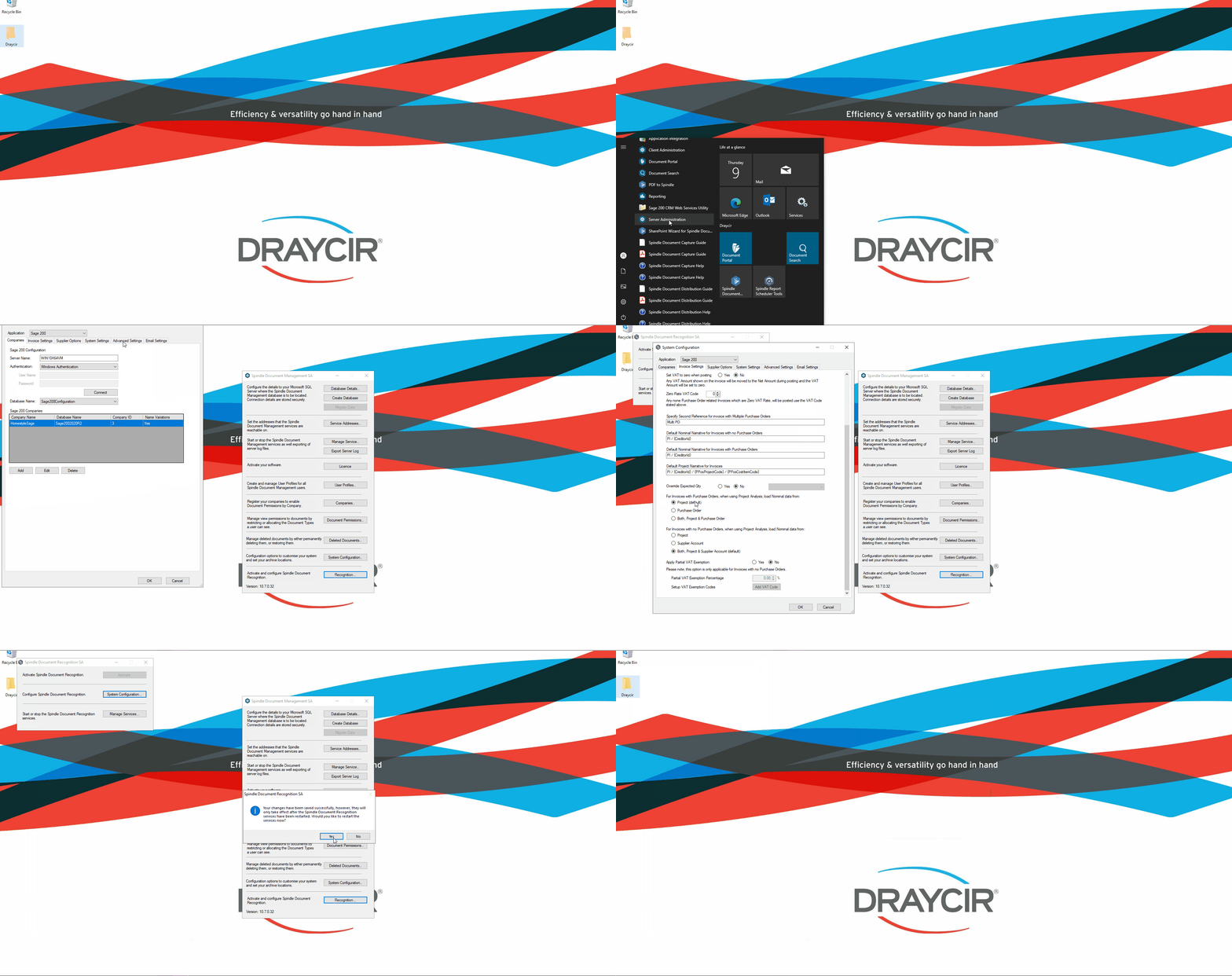 Default Nominal data when using Project Analysis - For Invoices with Purchase Orders
For Invoices with no Purchase Orders
- On the server, open the Spindle Document Management Server Administration tools
- Click on Recognition...
- Click on System Configuration...
- On the Invoice Settings tab
- Go to the For Invoices with no Purchase Orders, when using Project Analysis, load Nominal data from option
- You can select one of the following 3 options:
- Project - Displays the Nominal from the Project Analysis line item
- Supplier Account - Displays the default Nominal assigned against the Supplier Account in Sage 200
- Both, Project & Supplier (default) - Displays both Nominals, from the Project & Supplier Account
- Click OK
- You will be prompted to restart the Spindle Purchase Invoice Recognition services. Note: The Draycir Cloud Synchronisation Agent must be restarted for the changes to take effect.
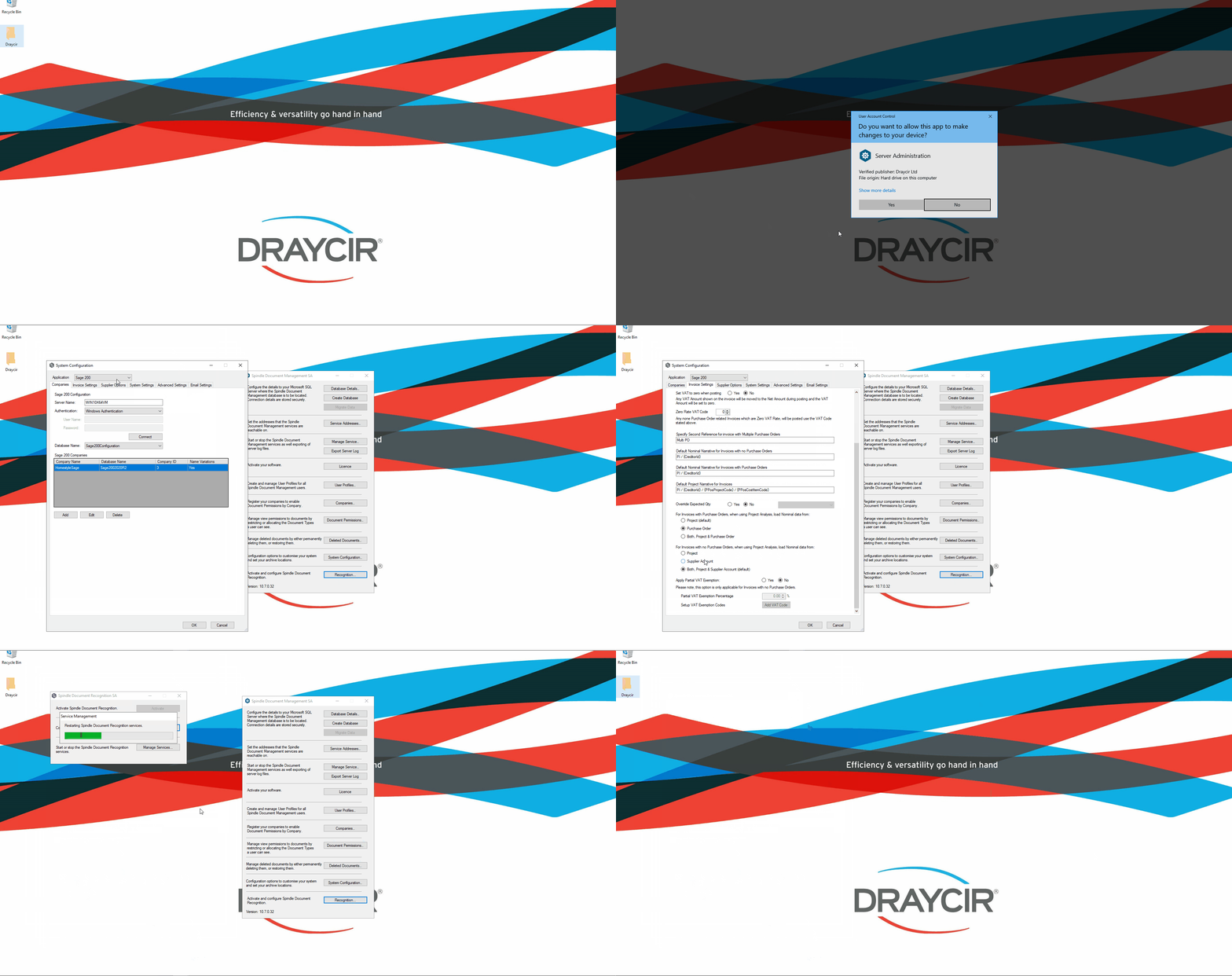 Default Nominal Analysis data when using Project Analysis - For Invoices without Purchase Orders