
To determine the supplier , Spindle Purchase Invoice Recognition will look for an exact match on particular data items between your accounting system (Supplier Account record) and data shown on the Purchase Invoice.
Supplier data rules
The following data will be cross-referenced between your accounting system and the Purchase Invoice (in the order shown):
1. IBAN
2. VAT REG NO
3. SUPPLIER NAME + STREET
4. EMAIL ADDRESS
5. WEBSITE ADDRESS
If the Supplier Ref is blank or incorrect, please ensure one or more of the data items listed above (that appear on the Purchase Invoice) are populated against the Supplier Account in your accounting system.
For Invoices with Purchase Orders
If a match cannot be found between the Supplier record in your accounting system and the Purchase Invoice based on the rules specified above, then there is a fall-back rule. If a Purchase Order number is found on the document, then Spindle Purchase Invoice Recognition will look-up the Purchase Order number to find the corresponding Supplier from your accounting system (master data).
Recognising the supplier automatically
The goal is to configure Spindle Purchase Invoice Recognition to detect your Supplier automatically. If any of the data items listed above are populated on the Purchase Invoice but are not populated against the supplier account in your accounting system, please ensure you populate at least one data item to ensure the system can cross-reference your data and automatically populate the supplier for you for all future invoices from the supplier.
If the Purchase Invoice doesn't contain any of the data items listed above, then you can train the system to recognise the supplier based on a unique block of text on the Purchase Invoice. This is called Dactylogram training.
Note: Supplier data rules should always be the preferred option for optimum performance. Dactylogram training should only be used when data is not available on the Purchase Invoice.
Dactylogram training steps:
1. Click into the Supplier Ref field
2. Click F4
3. Find your supplier (populate the Supplier Ref field)
4. Click F12
5. Click Yes when prompted to confirm if you want to create a dactylogram training
6. (the cursor will be in the Dactylogram field) Using the shift key and your mouse draw a box around a block of text that is unique to invoices from this supplier (e.g. an address block or bank details)
7. Check the text is populated correctly in the Dactylogram field
8. Click F12
9. Click Ok when prompted
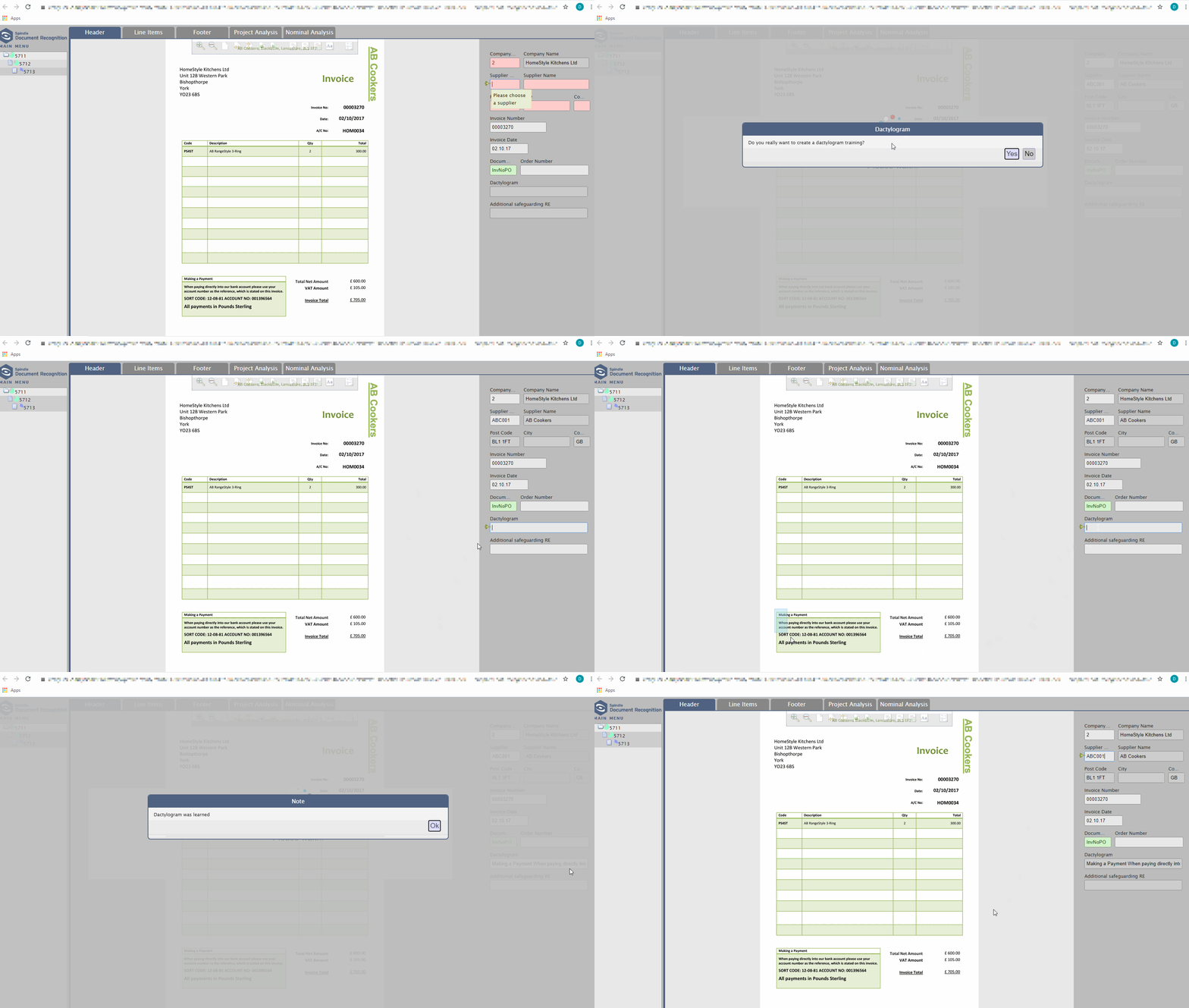 Training the Supplier
You will need to manually add a backslash \ in front of ever special character in the 'Dactylogram' and 'Additional safeguarding RE' field before saving the Dactylogram training with the F12 button.
1. Click into the Supplier Ref field
2. Hover over the Spindle Document Recognition icon (top-left) to see the menu > Extras > Training > Remove Training
3. Click Yes to confirm
4. Click Ok