
If you have one or more documents that could not be posted at the first attempt, then the documents shows a status of 'Failed to Post' or 'Discrepancy'. Hovering over the status will show the reason for why the document could not be posted.
For example, if the document 'Failed to Post' because the Purchase Order line items had not be Goods Receipted, then you'll be presented with the following message when hovering over the status if you are using Sage 200:
"You have not matched some or all of the invoice quantities to receipts. Please Confirm Goods Received in Sage for the item(s) on the invoice and then select the Post button below."
Once the appropriate Purchase Order line items have been Goods Receipted, you can attempt to post the document again.
How to re-post a Purchase Invoice
- Open the Document Portal
- Click on the RECOGNITION tab (paper stack icon) on the top-right of the Document Portal to view the documents progress
- Select the 'Failed to Post' or 'Discrepancy' document that you'd like to try and re-post
- Click on the POST button
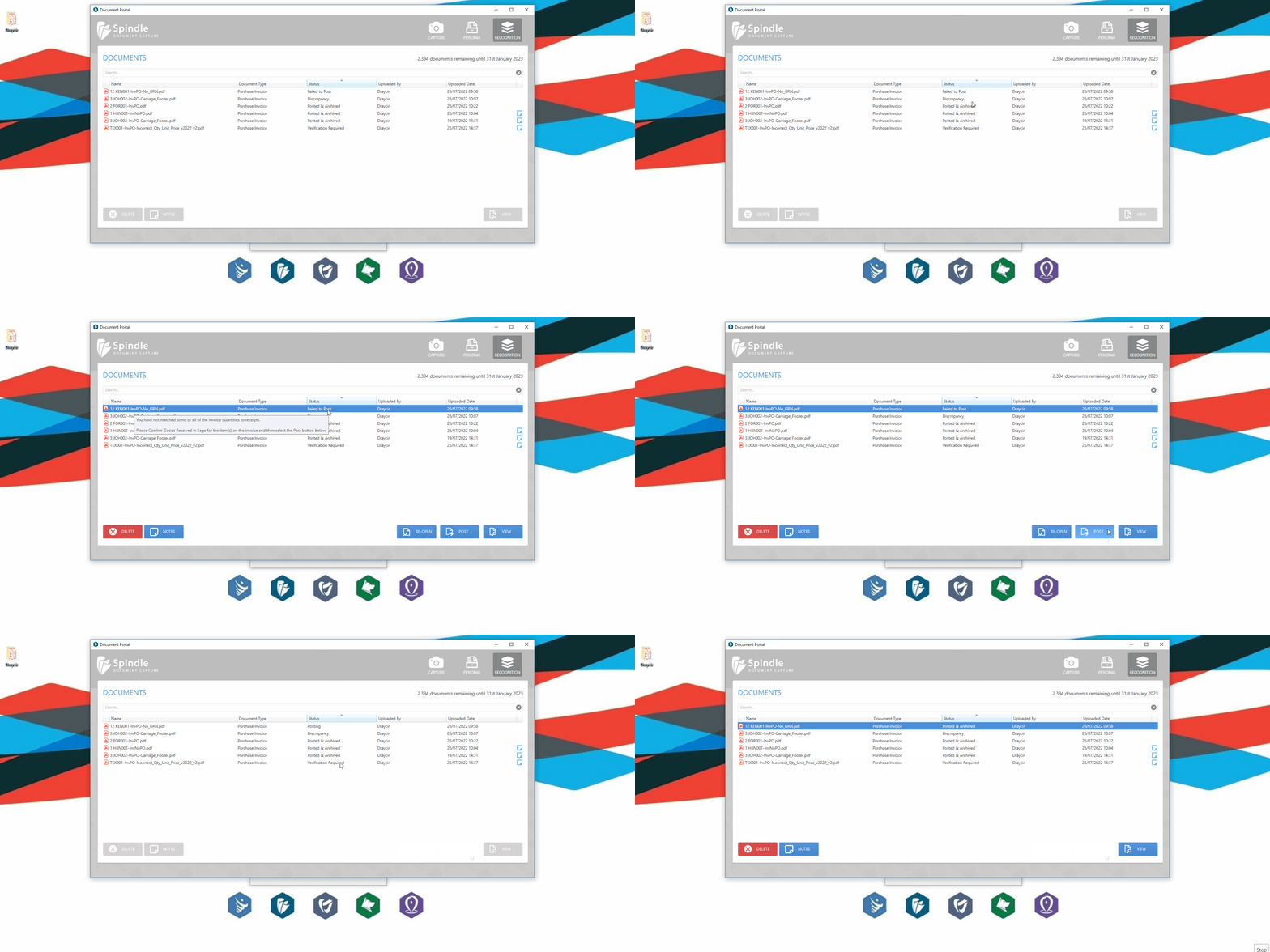 How to re-post a document
Note: To benefit from this feature you must be on Spindle Document Management version 10.2.1 or later.
How to re-post multiple Purchase Invoices
If there are a number of documents with a status of 'Failed to Post' or 'Discrepancy', then you can multiselect more than one document from the list and attempt to re-post them all in one go. To multiselect more than one document, hold down the Ctrl key on your keyboard and select the documents you want to re-post, or alternatively if you want to select a block of documents, then hold down the Shift key and select the first and last document from the list as shown in the video clip below.
Once selected, click on the POST button.
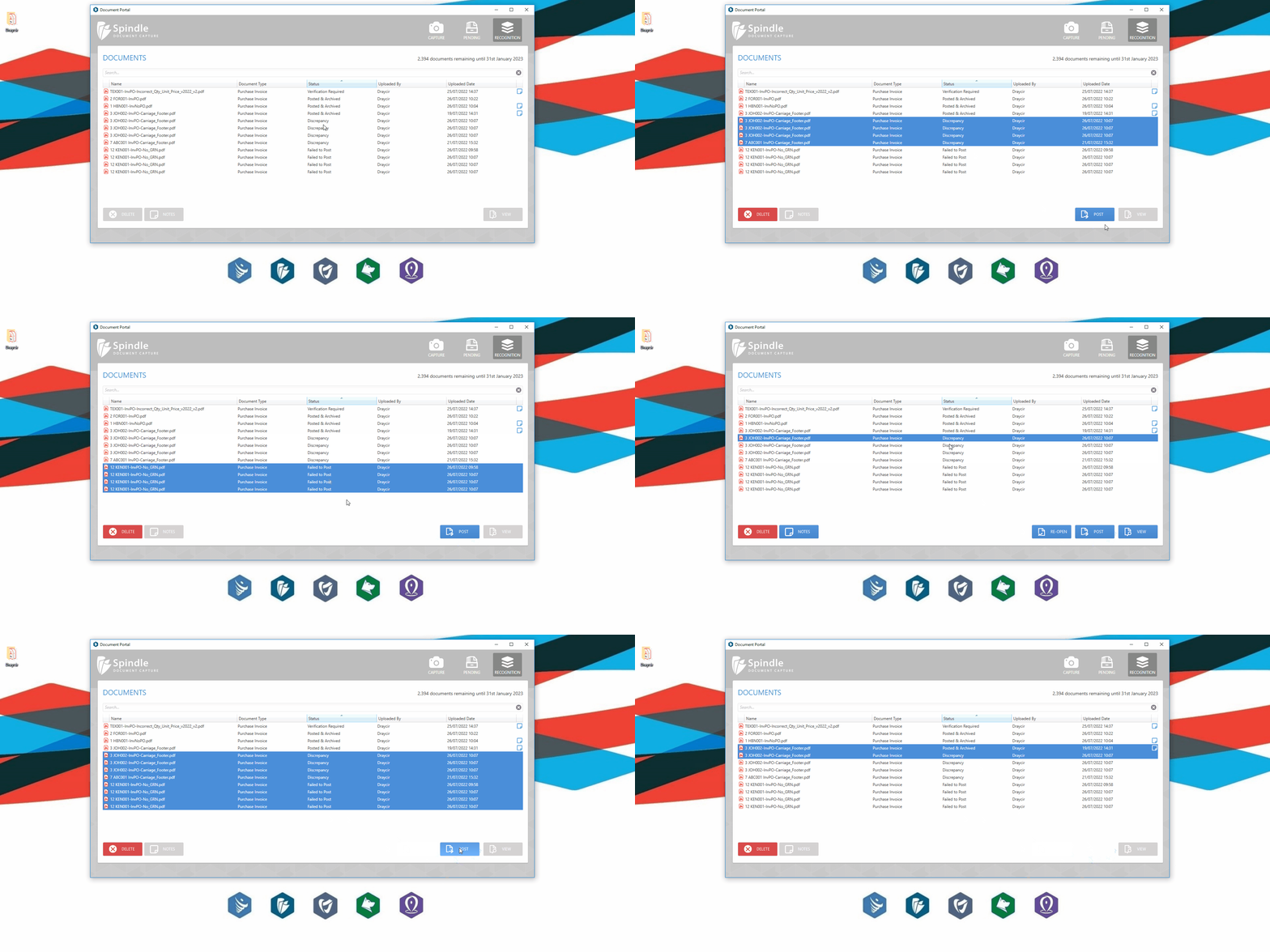 How to re-post multiple documents