
You can add notes against documents you are processing so that the information can be shared with other members of your team or simply serve as a reminder to you. For example, you may want to log when you query an invoice and need to contact the supplier so that other team members don't process the document until the query has been resolved.
To ensure a clear audit trail, when adding notes, they will be stamped with the name of the notetaker as well as a date and time the note was saved.
To indicate that a note has been added against a document, a note icon will be appear on the document row.
Notes can be added or viewed at any time from the Document Portal.
How to add a note
- Open the Document Portal
- Click on the RECOGNITION tab (paper stack icon) on the top-right of the Document Portal
- Select the document you would like to add a Note against
- Click on the NOTES button
- Type your note in the text box provided
- Click on the SAVE button
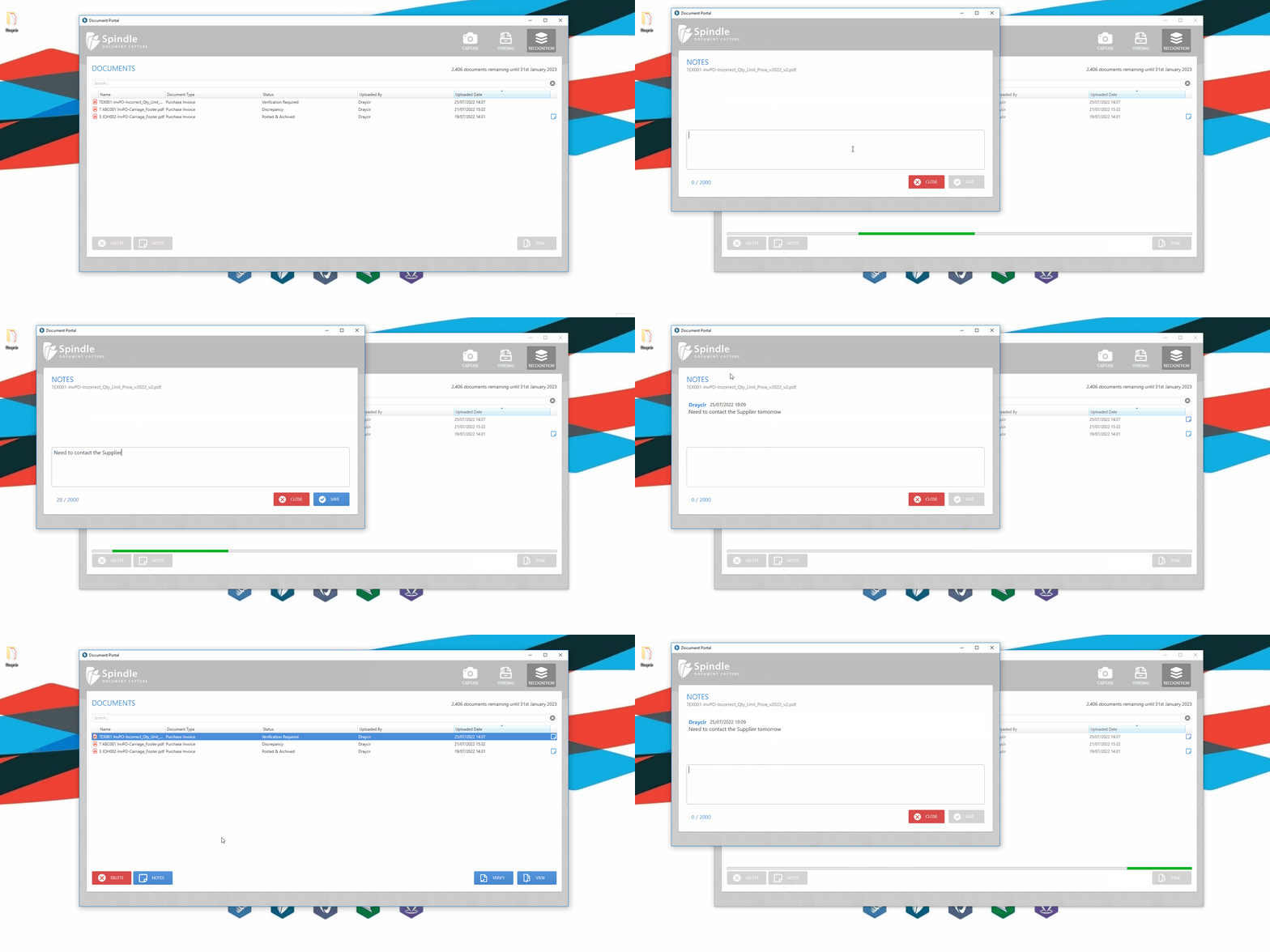 How to add a note against a document
Why can I not select the NOTES button?
You can only select the NOTES button if you have selected a single document. If you selected multiple documents, the NOTES button will be disabled.
Note: To benefit from this feature you must be on Spindle Document Management version 10.2.1 or later.
Note: To benefit from this feature you must be on Spindle Document Management version 10.2.1 or later.