
Spindle Purchase Invoice Recognition will find an Invoice Number automatically (by looking for a field label that indicates there is an Invoice Number) on the Purchase Invoice.
If the Invoice Number field label on the document is 'Invoice Number', 'Invoice No', 'Inv No' or a common variation, then the Invoice Number will be detected.
If the field label is more obscure or there is no field label, then the Invoice Number may not be detected.
Select the Invoice Number manually
If the Invoice Number is not automatically detected, you can manually select it:
- Click into the Invoice Number field
- Click on the Invoice Number within the document with your mouse
- The Invoice Number field will be populated - check it is correct
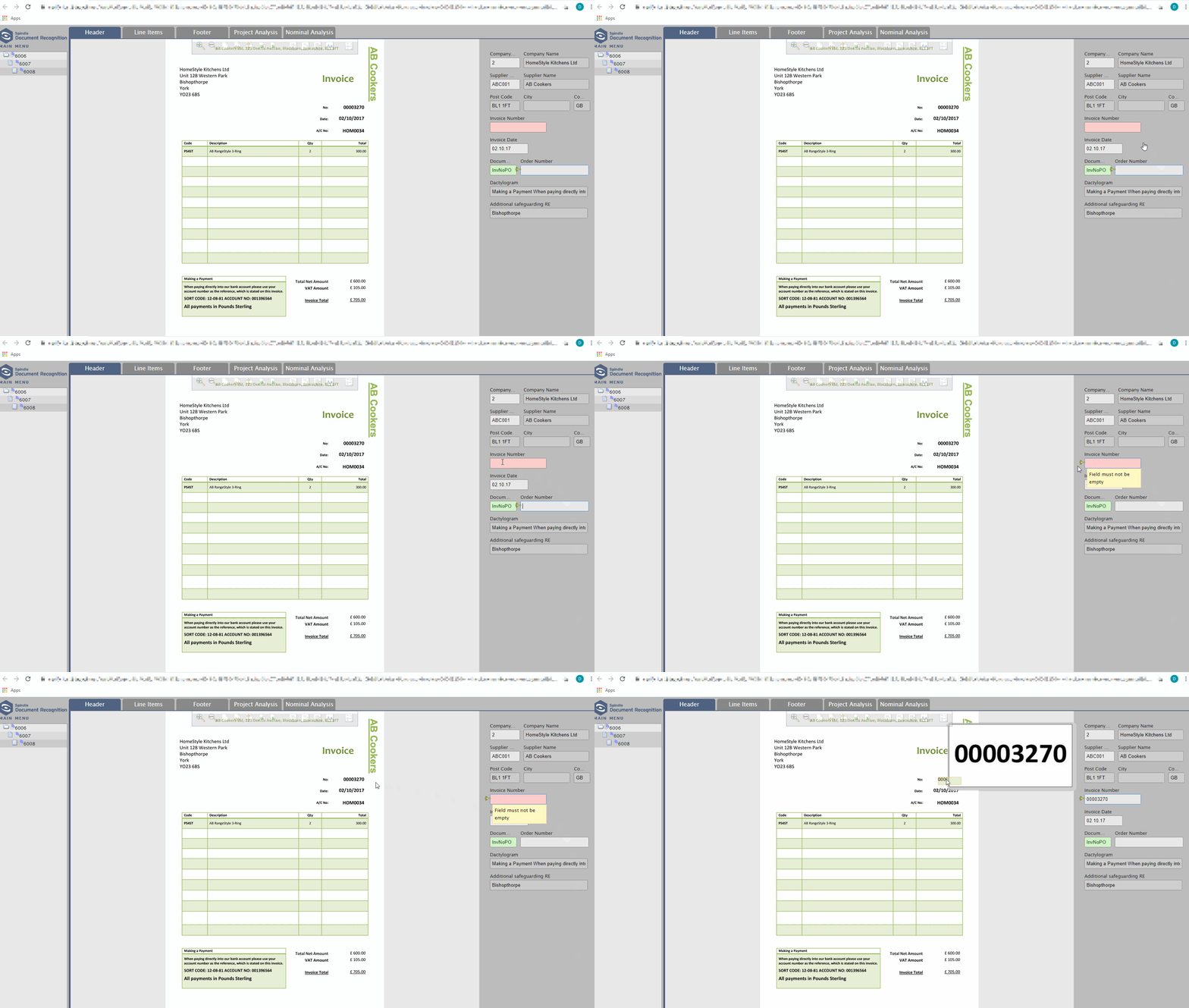 Selecting the Invoice Number manually
Train the Invoice Number
Once you have manually populated the Invoice Number (following the steps above), you can decide to train the Invoice Number so that the Invoice Number is automatically recognised on all future invoices from the supplier.
Note: The Invoice Number must have been populated in the field by selecting it from the document and not manually typing it
There are two types of training you can apply to an Invoice Number:
1. Regular Expression (Regex)
A Regular Expression uses a pattern to describe the Invoice Number e.g. pattern based on the length of string, combination of letters, numbers and characters.
If the Invoice Number string pattern is unique and you feel it won't be repeated elsewhere on the document (e.g. a combination of 6 digits could be confused with a date), you can train the "pattern" by pressing F12.
To use the menu option hover over the Spindle Document Recognition logo (top-left) > Extras > Training > Train field.
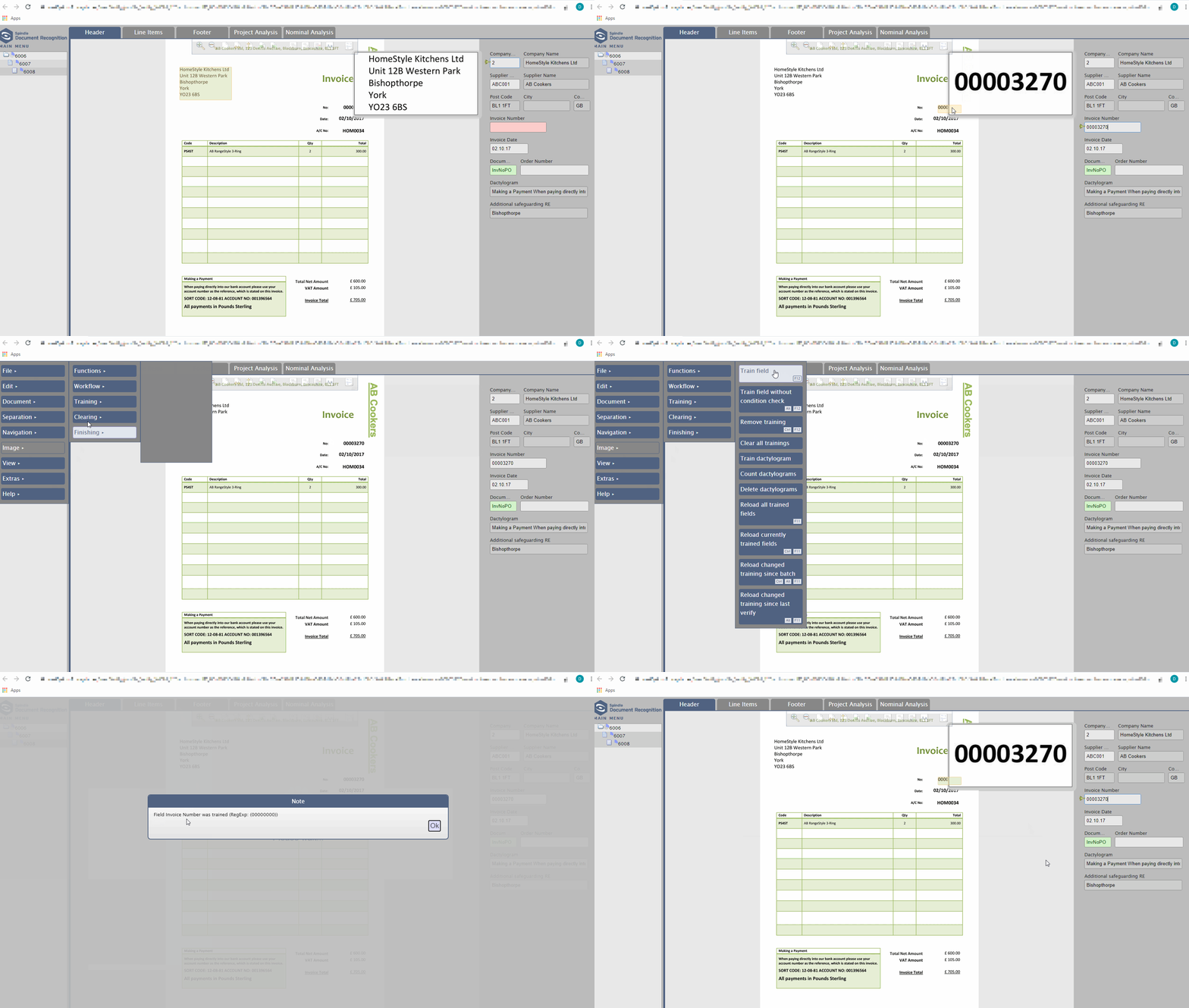 How to apply regex training for an Invoice Number
2. Zonal
If the Invoice Number string pattern is not unique enough e.g. the combination of letters and numbers within the Invoice Number string could be confused with other information on the document, then you can apply zonal training for the Invoice Number.
To train the Invoice Number based on its position on the document press Alt + F12.
The shortcut may be different depending on the browser being used. To use the menu option hover over the Spindle Document Recognition logo (top-left) > Extras > Training > Train field without condition check.
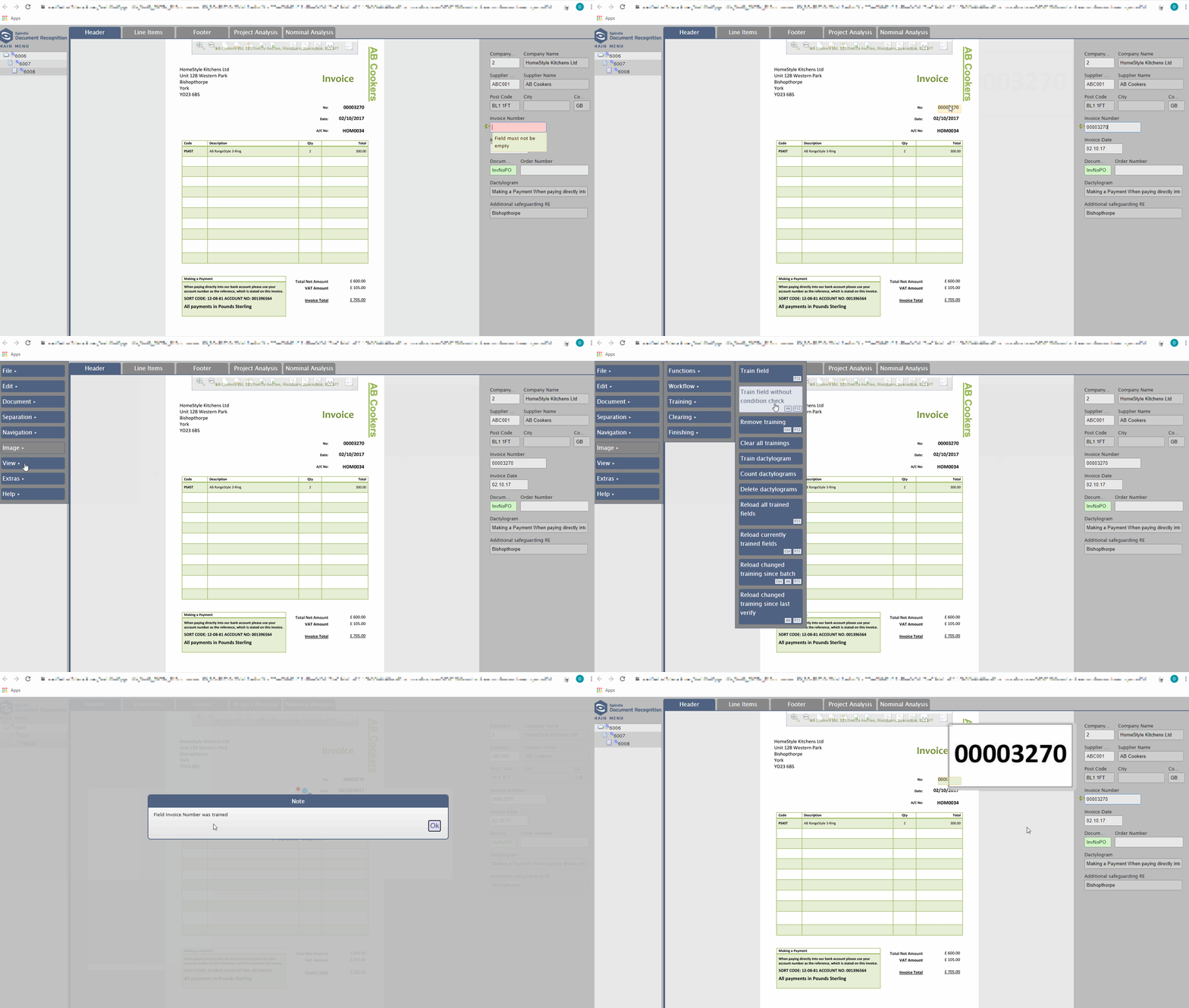 How to apply zonal training for an Invoice Number