
When reviewing and processing your Purchase Invoice or Credit Note you may want to copy text or data from the document into one of the free text fields rather than having to type out the information. For example, copying the Purchase Invoice line item description into the associated line item Nominal Narrative.
To help speed up the processing of your documents, you can copy the text from the document in Web Verify.
How to copy text from a Document
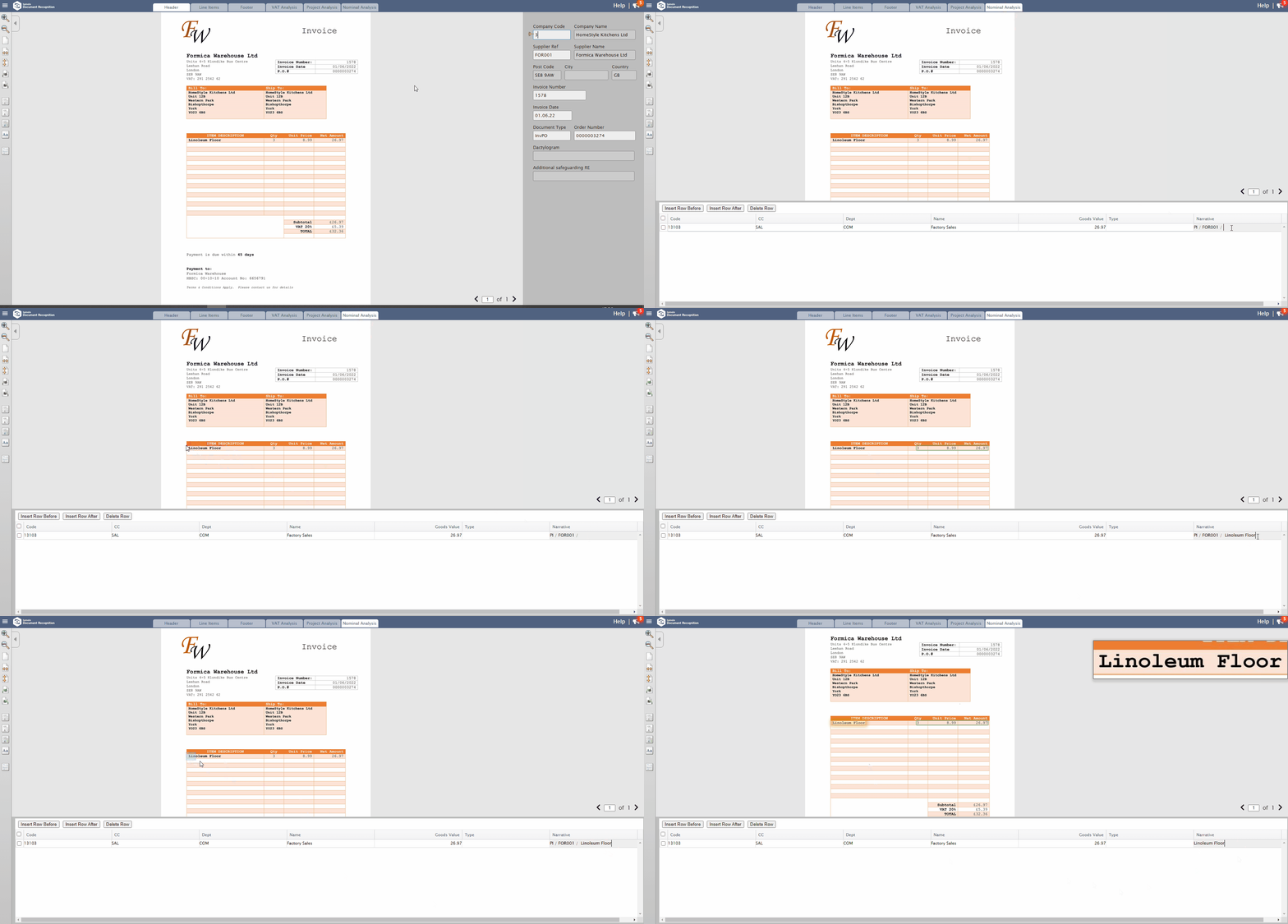
The steps below show how you can copy text into the Nominal Narrative field in Web Verify.
Open the document in Web Verify
Go the the Nominal Analysis tab
Click into the Nominal Narrative field that needs to be updated
Go to the area in the document that needs to be copied
To append any text that is already present in the Nominal Narrative field. Press & hold the Shift & Ctrl keys AND click & drag the left mouse button over the area of text that needs copying.
To overwrite any text that is already present in the Nominal Narrative field. Press & hold the Shift key AND click & drag the left mouse button over the area of text that needs copying.
Once the text is copied, release the left mouse button first, and then release the keys on your keyboard.
The copied text from the document should now be displayed in the Nominal Narrative field.
How to copy text from a Document